VS Code extension
Solve problems in Visual Studio Code – install VS Code and the Programavimas extension, sign in, run and submit, and read every test's result.
Prefer a real code editor? The Programavimas extension brings your courses into Visual Studio Code: problems in the side bar, the statement next to your code, and your solutions as ordinary files on your computer. Running and submitting work exactly as in the browser – your code goes to the same judge and never runs on your computer.
Programavimas for VS Code
Your courses, statements and results in Visual Studio Code. Sign in with the account you use in the browser.
- Courses in the side barTopics, deadlines and every problem's status.
- Statement beside your codeSamples copy with one click.
- Run and submitOn the same judge as the browser.
- Every test once judgedInput, expected output and yours.
Install
Section titled “Install”-
Get VS Code. It’s free for Windows, macOS and Linux: download it from code.visualstudio.com and install it like any other app. Already have it? VS Code keeps itself up to date; you need version 1.101 or newer.
-
Install the extension. Select Install the extension above. Your browser asks whether to open VS Code – allow it – and VS Code opens the extension’s page. Select Install.
Or, in VS Code, open Extensions (Ctrl Shift X), search for Programavimas and select Install. It’s also on the VS Code Marketplace, marked Preview while it’s new.
-
Find it in the activity bar. The Programavimas icon appears in the bar on the left of the window. Select it to open your courses.
Sign in
Section titled “Sign in”-
In VS Code, select the Programavimas icon, then Sign in.
-
Your browser opens Allow “Programavimas for VS Code” to use your account? Sign in first if you aren’t. The page lists what the extension can do – see your courses and problems, run and submit your solutions, see your submissions – and what it can’t: see other students’ work, or change your password or settings.
-
Select Allow. When the browser asks whether to open VS Code, allow it.
-
VS Code shows Signed in as … and your courses appear.
The extension never sees your password: the app gives it a key of its own, which you can take back at any time (see Account and signing out).
Where your solutions live
Section titled “Where your solutions live”The first time you open a problem, VS Code asks Where should solutions live? – this workspace folder, or another folder you choose. Inside it, each problem gets a folder of its own, in course order:
solutions/ the folder you chose algorithms-11/ course 01-search-and-sorting/ topic 01-binary-search/ problem main.cpp your solution (main.py for Python, main.cs for C#) input.txt your own input, sample 1 to start with .programavimas links the folder to the problem- A new solution starts from your latest submission of that problem – from the browser or another computer – or else from the starter code.
- Nothing is ever overwritten. The extension creates missing folders and files, and never overwrites, moves or deletes anything. Your files are your drafts: the app sees them only when you run or submit.
- Keep the hidden
.programavimasfile. It links the folder to its problem; you can rename or move the folder itself. - Another folder later? Run Choose solutions folder… from the command palette or the account menu. Existing folders stay where they are.
- A whole course at once: right-click the course and choose Create course folders.
Courses and problems
Section titled “Courses and problems”The Courses view lists your courses, their topics with deadlines, and the problems with the same status icons as in the browser. Topics that aren’t open yet show only how many problems they have. Excel tasks open in the browser.
The Submissions view lists your recent graded submissions. To find a problem by name, run Open problem… from the command palette (Ctrl Shift P).
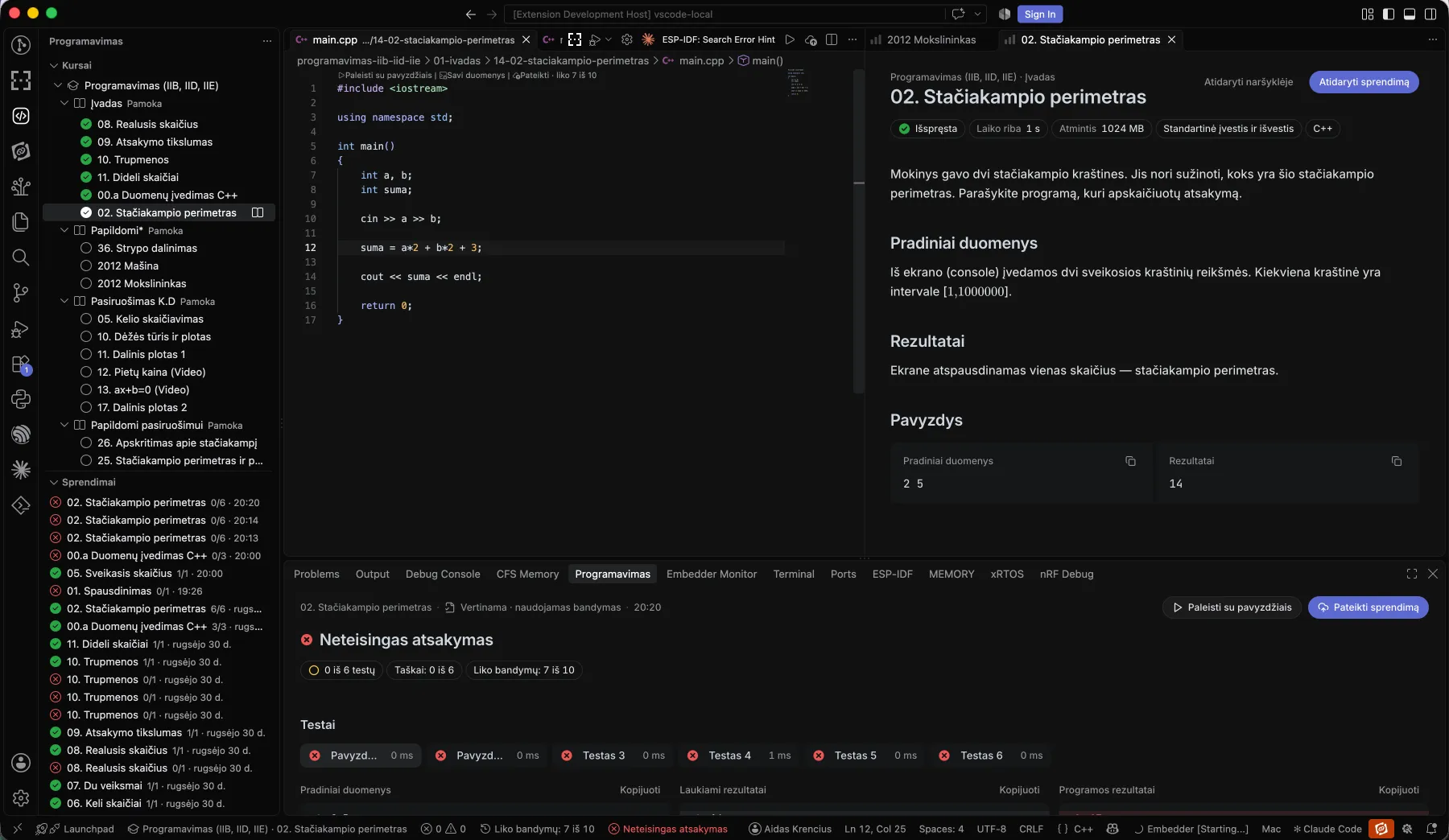
Selecting a problem opens your solution file and, beside it, the statement. Its tab is named after the problem; at the top are Open solution and Open in browser, and every sample has a copy button.
Run and submit
Section titled “Run and submit”Above the first line of your solution are the same three actions as in the browser. Run samples and Submit are in the editor’s top bar too.
| Action | Keys | What happens |
|---|---|---|
| Run samples | Ctrl ’ | Runs the statement’s samples. Greyed out when the problem has none. |
| Custom input | – | Runs your program with the input file next to it: input.txt, or the problem’s own file. |
| Submit | Ctrl Shift Enter | Submits for grading and uses one attempt, without asking again. Above the code you see how many attempts are left today. |
On a Mac press ⌘ instead of Ctrl. Attempts, limits, assessments and deadlines work as in the browser: see Running and submitting.
The status bar shows the course and problem, the attempts left, the judging step (“Testing 7/12”, then the verdict) and the solution’s language; select the language to switch to another allowed one.
Results
Section titled “Results”Results appear in the Tests and results panel, laid out like the statement:
- After running the samples: each sample’s input, the expected output and yours, with the differing lines marked and the first difference spelled out.
- After submitting: the verdict, your points, and every test as a tile. Select a test to see its input, the expected output, your output and the checker’s message – hidden tests included, once your submission is judged.
Compiler messages are underlined in your code and listed in VS Code’s Problems panel.
students/vs-code/resultsAccount and signing out
Section titled “Account and signing out”Your name in the status bar opens a short menu: open the app in the browser, change the solutions folder, or Sign out. You can also sign out from VS Code’s Accounts menu or the Courses view’s ⋯ menu. Your solution files stay on your computer.
To disconnect the extension from the app’s side, open Settings → Security → Connected apps and select Disconnect (see Account security).
The extension’s views and messages follow your account’s language (Settings → Preferences); command names follow VS Code’s own display language.
If something doesn’t work
Section titled “If something doesn’t work”| What you see | What to do |
|---|---|
| Selecting Install the extension does nothing | Install VS Code first, then try again. If the browser asks whether to open VS Code, allow it. |
| Signing in doesn’t come back to VS Code | Allow the browser to open VS Code, switch to the VS Code window you started from and select Sign in again. |
| “Couldn’t open this problem.” | Check your internet connection and try again, or open the problem in the browser. |
| The problem says to use the browser | Its allowed languages can’t be edited in VS Code yet. C++, Python and C# can. |
| Run samples is greyed out | The problem has no sample tests: use Custom input. |